

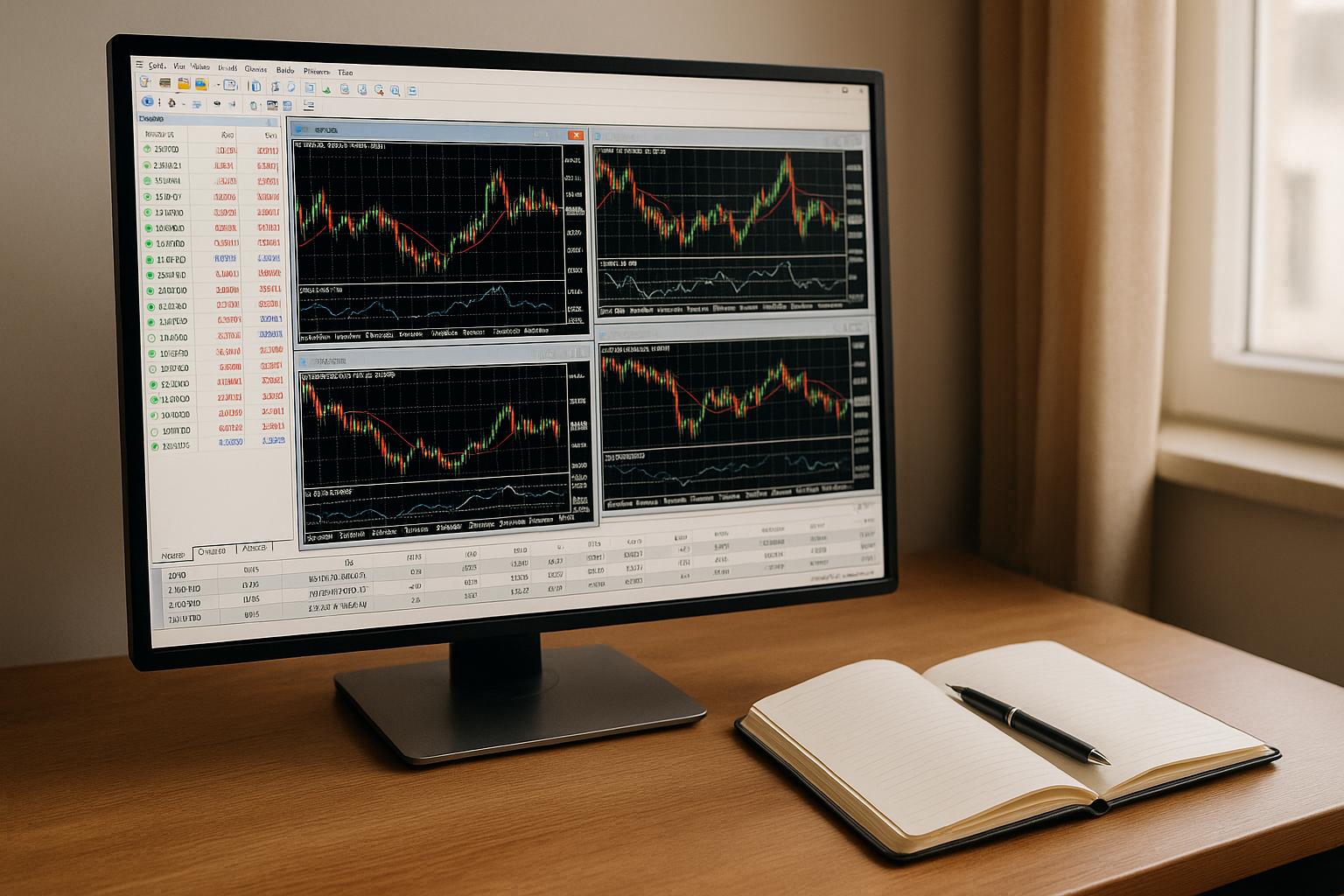
Backtesting in MT5 allows you to test trading strategies using historical data to evaluate their past performance. This step-by-step guide explains how to set up and run backtests effectively, covering everything from ensuring accurate data to optimizing strategy parameters. Here’s what you need to know:
- Why MT5? It automates testing, handles large data volumes, and provides detailed reports. Features like tick-by-tick data and multi-instrument testing make it precise and efficient.
- Setup Essentials: Update your MT5 software, download complete historical data, and configure the Strategy Tester with realistic parameters like deposit, leverage, and spread.
- Testing Models: Choose from modes like "Every Tick" for accuracy or "Open Prices Only" for speed. Use realistic settings for slippage, spread, and commissions.
- Optimization Tips: Fine-tune parameters using MT5’s optimization tools but avoid overfitting and bias by validating results on separate datasets.
- Key Metrics to Watch: Focus on Profit Factor, Maximum Drawdown, Sharpe Ratio, and equity curve consistency to assess performance.
Preparing MT5 for Backtesting

Verifying MT5 Installation and Updates
Before diving into backtesting, make sure your MT5 platform is updated. Running an outdated version can lead to bugs, missing features, or inaccurate test results. MetaQuotes regularly releases updates to improve the Strategy Tester, fix errors, and add new tools.
To check your MT5 version, open the platform, click Help in the top menu, and select About. A window will display your build number. Compare this to the latest version listed on the official MetaQuotes website. If your version is behind, update it by selecting Help → Check for Updates or simply restarting MT5, which typically triggers an automatic update.
It’s also essential to use the desktop version of MT5 for backtesting. While web-based terminals are convenient, they lack the full range of testing features. Whether you're on Windows, macOS, or Linux, ensure your system meets MT5's requirements to avoid performance hiccups during testing.
Lastly, confirm you have a stable internet connection. While backtesting itself doesn’t need internet access once historical data is downloaded, you'll need connectivity for software updates, syncing data, and using the MQL5 Cloud Network for distributed optimization tasks.
Once your installation is updated and verified, the next step is to download and manage high-quality historical data.
Loading and Managing Historical Data
MT5 automatically stores price history for various instruments, but this data needs to be complete and accurate for reliable backtesting. Missing or corrupted data can skew your results.
To manage historical data, press F2 to open the History Center. Here, you’ll find all available instruments organized by categories like Forex pairs, indices, and commodities. Each instrument lists its available timeframes and the date range of stored data.
Select the instrument you want to test and double-click on the desired timeframe. MT5 will display the earliest and latest dates for which data is available. If you notice gaps or limited history, click the Download button. MT5 will fetch the missing data from its servers. Depending on the volume of data, this process can take a few seconds to several minutes.
For effective backtesting, aim to use at least two to five years of historical data, depending on your strategy's timeframe. Shorter data periods might not fully capture diverse market conditions, which could lead to unreliable results.
Once the data is downloaded, verify its completeness by scrolling through the History Center. Look for any gaps, such as missing bars, which could result from weekends, holidays, or issues during the download. If gaps persist, try downloading the data again or switch to another data source provided by your broker.
Pay special attention to the spread setting in your historical data. MT5 can simulate variable spreads during testing, but only if your broker’s data includes spread information. If testing with fixed spreads, ensure the spread value matches real-world trading conditions. A strategy that works with a 1-pip spread might fail with a 3-pip spread.
Once your historical data is complete, you’re ready to configure the Strategy Tester for backtesting.
Configuring the Strategy Tester Interface
With MT5 updated and historical data in place, it’s time to set up the Strategy Tester. Open it by pressing Ctrl+R. The panel will appear at the bottom of your screen, displaying various tabs and input fields.
The Settings tab is your primary workspace. Here, you’ll select the Expert Advisor (EA) to test, choose the instrument and timeframe, set the testing period, and adjust other parameters.
Start by selecting your EA from the dropdown menu. If you’ve installed custom EAs, they’ll appear alongside built-in examples. If your EA isn’t listed, it might not be compiled correctly or could be in the wrong folder. MT5 looks for EAs in the MQL5 → Experts directory within your data folder.
Next, choose the symbol (instrument) and timeframe that align with your strategy. Set the date range using the calendar icons, ensuring it falls within the historical data you’ve downloaded. Testing across varying market conditions - trending, ranging, high volatility, and low volatility - provides a more comprehensive view of your strategy's performance.
You’ll also configure deposit (starting account balance), leverage, and optimization mode. Match the deposit to your actual trading capital or a realistic amount you plan to use. Leverage settings should reflect what your broker offers. For now, leave optimization mode off; it’s a more advanced feature we'll discuss later.
The visual mode option lets you watch the backtest play out in real-time on a chart. While useful for debugging or observing strategy behavior, it significantly slows down testing. For initial runs, keep visual mode off to save time. You can always enable it later for specific periods if needed.
Lastly, organize your workspace. Resize the Strategy Tester panel by dragging its top edge to give yourself more room to analyze results. The tabs at the bottom - Backtest, Optimization, Graph, Report - will fill with data once testing begins. Familiarizing yourself with these sections now will save time later when reviewing your results.
Running Backtests: Step-by-Step Process
Setting Basic Parameters
Once you’ve opened the Strategy Tester and loaded your historical data, the first step is to configure the basic parameters for your test.
Start by selecting your Expert Advisor (EA) from the dropdown menu in the Settings tab. This will display all compiled EAs in your MT5/Experts folder.
Next, choose the trading symbol - the financial instrument your strategy will trade, such as EUR/USD, a stock index, or a commodity. For multi-currency EAs, ensure all required symbols are visible in the Market Watch window. You can do this by right-clicking the window and selecting Show All.
The timeframe determines the historical bars MT5 uses for testing. MT5 offers 21 different timeframes, ranging from one minute (M1) to monthly (MN1). Select the timeframe that matches your strategy’s logic. For instance, scalping strategies often operate on M1 or M5 charts, while swing trading strategies might use H4 or daily charts.
Set your date range using the calendar icons. You can either select predefined periods or customize the start and end dates. The test begins at midnight on your start date and ends with the last tick before midnight on your end date. MT5 also preloads at least 100 bars of data before the start date to ensure your EA’s indicators initialize correctly. Choose a range that includes varying market conditions, such as trending markets, sideways movements, high-volatility events, and quieter periods.
Define your initial deposit to reflect the trading capital you plan to use. By default, MT5 uses the deposit currency of your connected account, but you can select a different currency from the dropdown menu. Ensure cross rates are available to convert profits and margin calculations to your chosen currency. Testing with realistic amounts provides a clearer picture of potential drawdowns and risks.
Set your leverage based on what your broker offers and what you plan to use. Leverage affects the margin required for each position. For example, if your broker provides 1:100 leverage, use the same setting in your test. Misaligned leverage settings can skew the perceived risk of your strategy.
These basic parameters lay the groundwork for selecting a testing model and simulating market conditions.
Choosing the Right Testing Model
After setting the parameters, choose a testing model that best mimics live trading conditions. MT5’s Strategy Tester offers several tick generation modes, each varying in accuracy and speed. The mode you select will significantly influence the realism of your results, particularly for strategies sensitive to price movement, slippage, or spread changes.
- "Open prices only": This is the fastest mode, where the EA’s OnTick() function runs only at the opening price of each bar. It’s ideal for strategies that make decisions solely at bar open and don’t rely on intra-bar price movements or precise order execution. However, it doesn’t account for intra-bar volatility or realistic stop-loss and take-profit triggers.
- "1 Minute OHLC": This mode uses the Open, High, Low, and Close prices of each minute bar to generate ticks. It’s faster than tick-by-tick simulations but less precise. It provides a good balance for evaluating overall strategy logic and profitability.
- "Every tick": This mode simulates multiple ticks within each minute bar, offering a detailed view of how your strategy might perform under live trading conditions. It’s slower but more accurate, especially for strategies dependent on precise price movements.
- "Every tick based on real ticks": This mode uses actual historical tick data from brokers, delivering the most realistic simulation. It captures every price fluctuation and spread variation but requires significant data downloads, which can take time. Your broker must also provide this data for the symbols you’re testing.
For initial testing, faster modes like "Open prices only" or "1 Minute OHLC" can help verify your strategy’s basic logic. But for final validation - especially for scalping, high-frequency trading, or strategies with tight stop-losses - use "Every tick" or "Every tick based on real ticks". If a strategy performs exceptionally well in simplified modes, re-test it in "Every tick" mode to confirm its robustness under realistic conditions.
Simplified modes can sometimes give an overly optimistic picture of performance. A strategy that looks efficient in these modes might struggle when factors like slippage, spread widening, or intra-bar stop-loss triggers are accounted for.
Simulating Realistic Market Conditions
Once you’ve chosen a tick generation mode, fine-tune additional settings to replicate live market conditions. This includes configuring spread, slippage, and commissions.
Spread is the gap between bid and ask prices, which directly impacts profitability. MT5 can simulate variable spreads if your broker’s historical data includes this information. Otherwise, set a fixed spread that reflects live trading conditions, including potential spread widening during volatile periods.
Slippage refers to the difference between the expected and actual execution price, often occurring in fast-moving or low-liquidity markets. Set a maximum deviation in points to simulate slippage. For major currency pairs during peak hours, slippage might be minimal (1–2 pips), but it can be much higher for less liquid instruments or during major news events. Configure this setting to match the conditions you expect to trade in.
Execution delays represent the time lag between when your EA sends an order and when it’s executed. Although MT5’s backtester doesn’t have a specific parameter for execution delays, keep in mind that network latency, broker processing times, and market conditions can all contribute to delays. This is especially critical for strategies requiring split-second timing, like scalping or arbitrage.
Lastly, account for commission costs if your broker charges per trade or per lot. Even small commissions can add up over hundreds of trades, influencing your strategy’s profitability. MT5 allows you to specify commission amounts in the Strategy Tester settings, ensuring your results reflect real-world trading costs.
Metatrader 5 (MT5) Backtest & Optimization | A-Z Guide 2025
Optimizing Strategies Through Advanced Methods
Once you've completed initial backtests and confirmed your strategy's basic framework, the next step is optimization. This process involves tweaking parameters and testing different combinations—often using backtesting scripts—to find settings that adapt well to various market conditions. But be cautious - chasing perfect historical results can lead to a strategy that falters in live trading. Here’s how to use MT5’s optimization mode to refine your strategy without compromising its real-world performance.
Activating Optimization Mode in MT5
To begin, open the Strategy Tester by pressing Ctrl + R or navigating to View → Strategy Tester. From the dropdown menu, select your Expert Advisor (EA). If your EA doesn’t appear, ensure it’s saved in the MQL5/Experts folder, then restart MT5.
Next, enable optimization mode by checking the Optimization box in the Strategy Tester panel. Apply the same settings you used during backtesting - like symbol, timeframe, date range, deposit, leverage, and execution delay - to mimic live trading conditions.
For generating ticks, choose a mode that aligns with your accuracy needs. Options like "Every tick" or "Every tick based on real ticks" provide the most realistic results but take longer to process. If you’re just narrowing down parameters, the faster "Math calculations" mode can be a good starting point.
To configure the parameters you want to optimize, go to the Inputs tab or open Expert Properties. Mark the checkbox for each parameter you want to test, then set the Start (minimum), End (maximum), and Step (increment) values for each.
Finally, select an optimization algorithm. The slow complete algorithm tests every possible combination of parameters, offering thorough results but requiring significant time if the parameter range is large. Alternatively, the genetic algorithm uses evolutionary principles to identify promising parameter sets more quickly, balancing speed and depth. Choose the slow complete algorithm for exhaustive testing or the genetic algorithm for quicker insights.
Once set, take steps to avoid overfitting.
Avoiding Over-Optimization (Curve-Fitting)
Overfitting happens when a strategy is overly customized to historical data, causing it to underperform in live markets. One red flag is an irregular optimization graph, where slight changes in parameters cause dramatic shifts in profitability.
To avoid this, validate your optimizations on different datasets. For example, optimize your strategy using one dataset and test it on another. This ensures your strategy captures genuine market trends rather than random noise. Also, limit the number of parameters you optimize - each added parameter increases the risk of overfitting to historical quirks. Start with wider steps during the initial optimization to avoid hyper-specific values, then narrow the steps for fine-tuning once promising ranges are identified.
Evaluate your optimized strategy under various market conditions to confirm its resilience. Always consider the logic behind your parameter choices. Be wary of results showing exceptionally high returns with minimal drawdown - this could signal issues like look-ahead bias, poor data quality, or over-optimization. A strong strategy should perform consistently, even with slight parameter adjustments.
Interpreting Backtest Results
After fine-tuning your strategy, reviewing the backtest results is essential to confirm whether your adjustments hold up. MetaTrader 5 (MT5) generates a detailed set of performance metrics that can help you distinguish between a strategy with real potential and one that might be over-optimized. The key is understanding which metrics matter most and how to interpret them effectively.
Understanding Key Performance Metrics
MT5 provides a wealth of data, but a few metrics stand out in evaluating a strategy's performance. Total Net Profit offers a quick snapshot of overall profitability, while Annual Returns standardize this performance to show how efficient the strategy is over time.
Profit Factor is another critical metric, calculated by dividing gross profit by gross loss. A Profit Factor above 1.0 indicates profitability, but a value of 1.5 or higher suggests the strategy performs well. On the other hand, if the Profit Factor is below 1.2, the strategy might struggle in real-world markets.
Maximum Drawdown (MDD) measures the largest decline from a peak to a trough in your account balance or equity during the test period. This metric is vital for gauging potential losses and determining if the strategy aligns with your risk tolerance. MT5 breaks this down further into Balance Drawdown (Absolute, Maximal, Relative) and Equity Drawdown (Absolute, Maximal, Relative).
The Sharpe Ratio assesses risk-adjusted returns by comparing excess returns to volatility. A higher Sharpe Ratio generally means the strategy offers better returns for the level of risk taken.
Win Rate, or the percentage of profitable trades, is another important metric. However, it works best when analyzed alongside the average win-to-loss ratio. A lower win rate can still be effective if the gains from winning trades outweigh the losses.
Reviewing the Backtest and Graph Tabs
The Backtest tab (sometimes called "Results" or "Report") provides detailed insights, including total trades, consecutive wins and losses, and average trade duration. MT5’s reporting can break down these metrics by year or month, helping you spot trends and periods of strong or weak performance.
"MT5's enhanced reporting breaks down these metrics by year or month, making analysis easier. A reliable custom indicator should consistently maintain a profit factor above 1.2 in all conditions." - Forex Tester 2024 survey
Look for consistency across different time frames. For example, if the Profit Factor exceeds 1.5 in some months but drops below 1.0 in others, it might indicate the strategy struggles in certain market conditions. Warning signs include sharp declines or a pattern of worsening performance over time.
The Graph tab visually represents the equity curve, showing how your strategy performed over time. A steady upward trend with controlled drawdowns is ideal, while sharp declines may signal significant losses. This visual tool is invaluable for assessing overall performance.
The Trades tab lists every executed trade in chronological order. This breakdown can help you identify anomalies or patterns of underperformance.
For a deeper dive, enable Visual Mode in the Strategy Tester. This feature lets you watch your Expert Advisor trade in real time on a chart, with a speed slider to control playback. It’s a great way to ensure the EA behaves as expected and to spot any unexpected actions.
Identifying Areas for Improvement
Once you've reviewed the metrics and visualizations, focus on identifying weak spots. Start by examining periods of poor performance in the monthly or yearly breakdown. Did the strategy falter during trending markets or struggle in ranging conditions? Recognizing when it underperforms can guide adjustments to parameters or filters.
Analyze the trade-by-trade breakdown to see how profits and losses are distributed. If a small number of trades account for most of the profits while the majority result in small losses, the strategy might be too reliant on rare market conditions. Conversely, if frequent small wins are wiped out by occasional large losses, consider refining your stop-losses or position sizing.
Pay close attention to Maximum Drawdown relative to your average trade size and win rate. If drawdowns are disproportionately large compared to typical gains, it’s a sign that risk management needs adjustment. Also, examine streaks of consecutive losses to ensure your position sizing remains appropriate.
After making adjustments, test the strategy on out-of-sample data - data not used during the optimization process. This step helps verify whether the strategy reflects genuine market behavior or if it’s been over-optimized. A significant drop in performance on fresh data could indicate overfitting.
Be cautious of results showing unrealistically high returns with minimal drawdown. Such outcomes often point to over-optimization. A reliable strategy should still perform reasonably well even if its parameters are slightly adjusted.
Finally, consider whether the strategy’s behavior aligns with current market dynamics. Taking the time to analyze unexpected results can help you differentiate between a true market edge and potential flaws in your testing setup or data.
Conclusion
Backtesting in MT5 demands careful testing and analysis. The success of any trading strategy in live markets hinges on the thoroughness of this process. Here are the key points to keep in mind for effective backtesting.
Key Takeaways from the Guide
First, ensure both your MT5 platform and data are current. Data integrity is critical - any errors here can undermine your entire testing process. Set your tester parameters to reflect real-world trading conditions as closely as possible.
When selecting a testing model, match it to the complexity of your strategy. The Every Tick Based on Real Ticks model delivers the most accurate results, but it’s time-intensive. Simpler models suffice for basic strategies. Aim to simulate realistic trading conditions to minimize discrepancies between your test results and live performance.
Optimization is a double-edged sword. MT5’s optimization tools can uncover better parameter combinations, but over-optimization can lead to curve-fitting - where a strategy excels in historical data but falters in live markets. Always validate your results using out-of-sample data to ensure your strategy reflects actual market behavior.
Focus on meaningful metrics like Profit Factor, Maximum Drawdown, Sharpe Ratio, and the consistency of returns over time. A strategy with steady, moderate returns and controlled risks often outperforms one that swings between massive gains and heavy losses.
The Value of Iterative Backtesting
Backtesting is not a one-and-done process. Successful traders see it as an ongoing cycle: test, analyze, adjust, and retest. This iterative approach helps refine backtesting strategies that actually work to adapt to different market environments.
After your initial backtest, examine periods where your strategy struggled. Was it during high volatility? A trending market? A ranging phase? Identifying these patterns allows you to tweak entry and exit rules, adjust position sizing, or apply filters to avoid unfavorable conditions.
Make small, incremental changes and test each one individually. This systematic approach not only improves your strategy but also helps you understand why it works, not just that it works.
Keep detailed records of every backtesting session. Document the parameters, results, and the rationale behind any adjustments. These notes will be invaluable when revisiting past decisions or comparing different strategy variations.
Next Steps for Advanced Traders
Once you’ve fine-tuned your strategy through rigorous backtesting, MT5 offers advanced features to prepare for live trading. Use Visual Mode to observe your Expert Advisor in action, helping you catch behaviors that raw data might not reveal. For complex strategies, the MQL5 Cloud Network can significantly speed up optimization by leveraging distributed computing power.
Consider testing multi-currency and multi-timeframe strategies. While more complex, these approaches can add diversification benefits that single-instrument strategies lack. Evaluate your strategy across different currency pairs or instruments to identify where it performs best.
Before going live, conduct forward testing on a demo account. This step bridges the gap between backtesting and live trading, exposing your strategy to current market conditions without risking capital. Compare forward test results to your backtests - if there’s a significant mismatch, revisit your backtesting setup.
Finally, remember that markets evolve. A strategy that thrives in one market environment might falter as conditions shift. Regular backtesting ensures your approach stays aligned with the ever-changing market landscape, helping you maintain a competitive edge in trading.
FAQs
How do I make sure the historical data in MT5 is accurate and reliable for backtesting?
To make sure your historical data in MT5 is reliable for backtesting, connect to a broker known for providing reliable historical data. It's important that the data spans several years to capture various market conditions, including trends, periods of volatility, and shifts in economic cycles.
You should also confirm that the data is complete and doesn’t have any gaps. To do this, download it directly through the MT5 platform and refresh it in the History Center. This step minimizes errors and boosts the accuracy of your backtesting outcomes.
How can I prevent overfitting when optimizing a trading strategy in MT5?
When refining a trading strategy in MT5, walk-forward analysis is a great way to reduce the risk of overfitting. This method splits historical data into segments: one for optimization and another for testing. By doing this, you can check if the strategy holds up across varying market conditions.
Another key tip: don’t cram your strategy with too many parameters. Overcomplicating things often results in a model overly tailored to past data, which can hurt its performance in real-world scenarios. Instead, aim for a strategy that’s simple and resilient, capable of adapting to shifts in the market.
How does the testing model in MT5 impact the accuracy of backtesting results?
The testing model you select in MT5 significantly impacts the accuracy and dependability of your backtesting results. If you're aiming for the highest level of precision, 'Every tick' mode is your best bet. It closely replicates real market conditions, making it perfect for strategies that hinge on intraday price movements. The downside? It can take a while to complete.
On the other hand, options like '1-minute OHLC' or 'Open prices only' offer faster testing. These models simplify price data, which makes them less precise but still useful for initial testing phases or strategies that aren't sensitive to small price changes.
For fine-tuning or preparing a strategy for live trading, sticking with 'Every tick' mode ensures the most accurate and reliable results.
Related Blog Posts
Start Trading with For Traders
Join our platform to test your trading skills, trade virtual capital, and earn real profits. Access educational resources, advanced tools, and a supportive community to enhance your trading journey.
Start your Trading Challenge